Reports
The calculation report #
The calc report is a PDF on US letter portrait pages. It documents one connection, or every connection of a project when you produce a calculation package.

- Calc report (PDF) produces the report with your saved report settings: the project's overrides if it has any, otherwise your defaults.
- The arrow beside it offers:
- Summary report: tables only.
- Full report: every step.
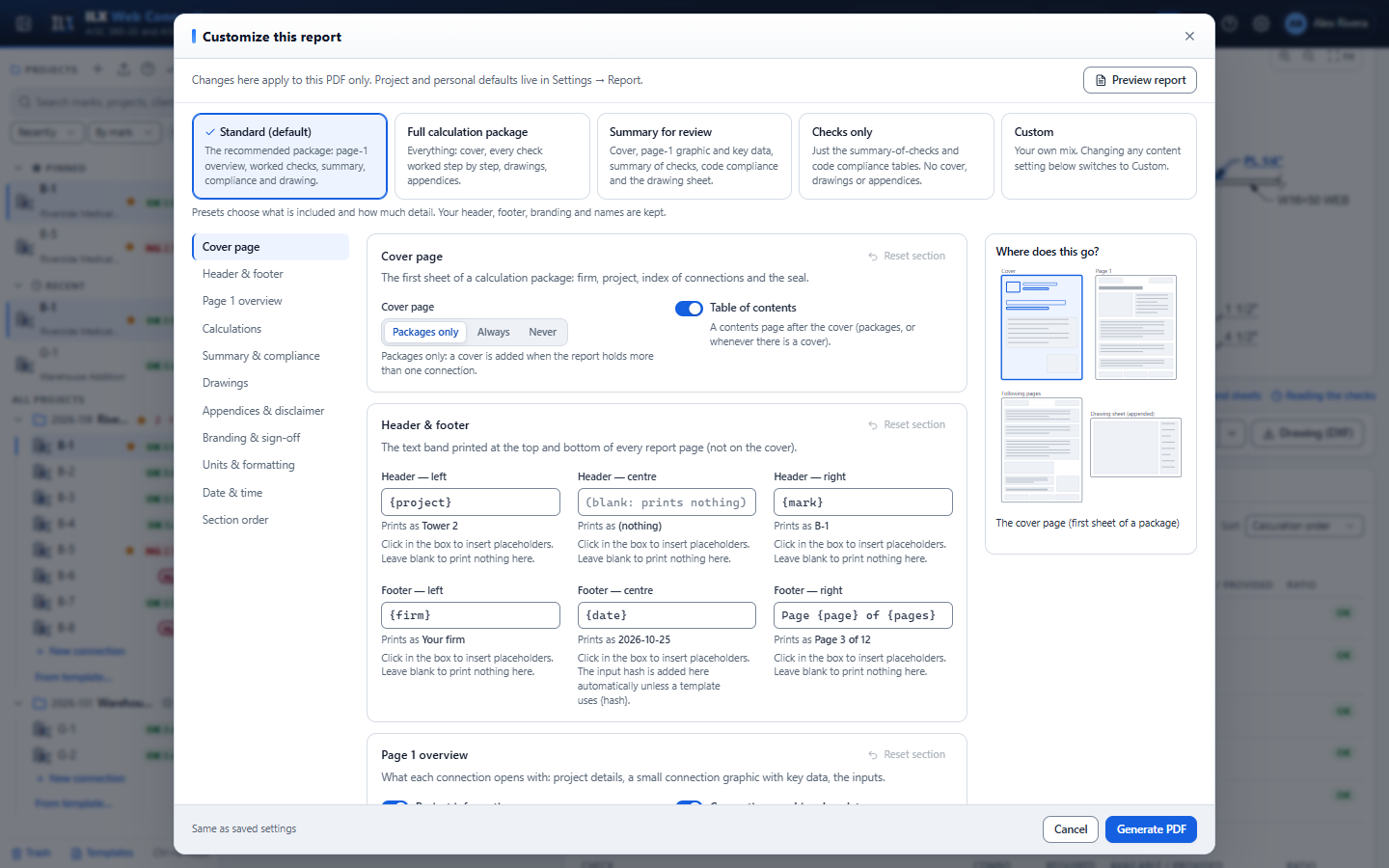
- Customize this report…: change any setting for this one PDF.
- Drawing sheet produces the drawing sheet PDF (see Drawings).
- The sheet-size arrow chooses the sheet size.
- Drawing (DXF) produces the sheet as a DXF file.
The PDF opens in a new browser tab. A report takes a few seconds to produce.

What the report contains #
With the Standard preset, each connection's part of the report holds, in order:
- Header block: the connection title and configuration, the mark, the date, the method, the units and the input hash. The hash is a short fingerprint of the inputs, so a printed report can be matched to its inputs.
- Status banner: CONNECTION ADEQUATE or NOT ADEQUATE, with the governing check and ratio. An infeasible connection gets a NOT FEASIBLE banner listing the geometric problems.
- Project information: project number, client, address, architect, contractor, engineer of record, drawn and checked by, dates, description and project notes.
- Connection graphic and key data: small elevation and plan views next to a table of the key sizes and the governing check.
- Input summary: every input value.
- Loads and combinations: the required strength, worked out from the loads.
- Summary of checks: the strength checks grouped by element, with demand, capacity and ratio.
- Code compliance: each detailing requirement, provided against limit, with its clause.
- Detailed calculations: each check step by step, with typeset equations and clause references.
- Connection drawings: full-width elevation and plan.
- Appendices: a summary of every code clause cited, and the revision history when the project has revisions.
- Seal / signature block: prepared by, checked by, reviewer and a seal box.
- Disclaimer.
- Drawing sheet: the title-blocked sheet is appended at the end and counted in the page numbers ("Page x of y").
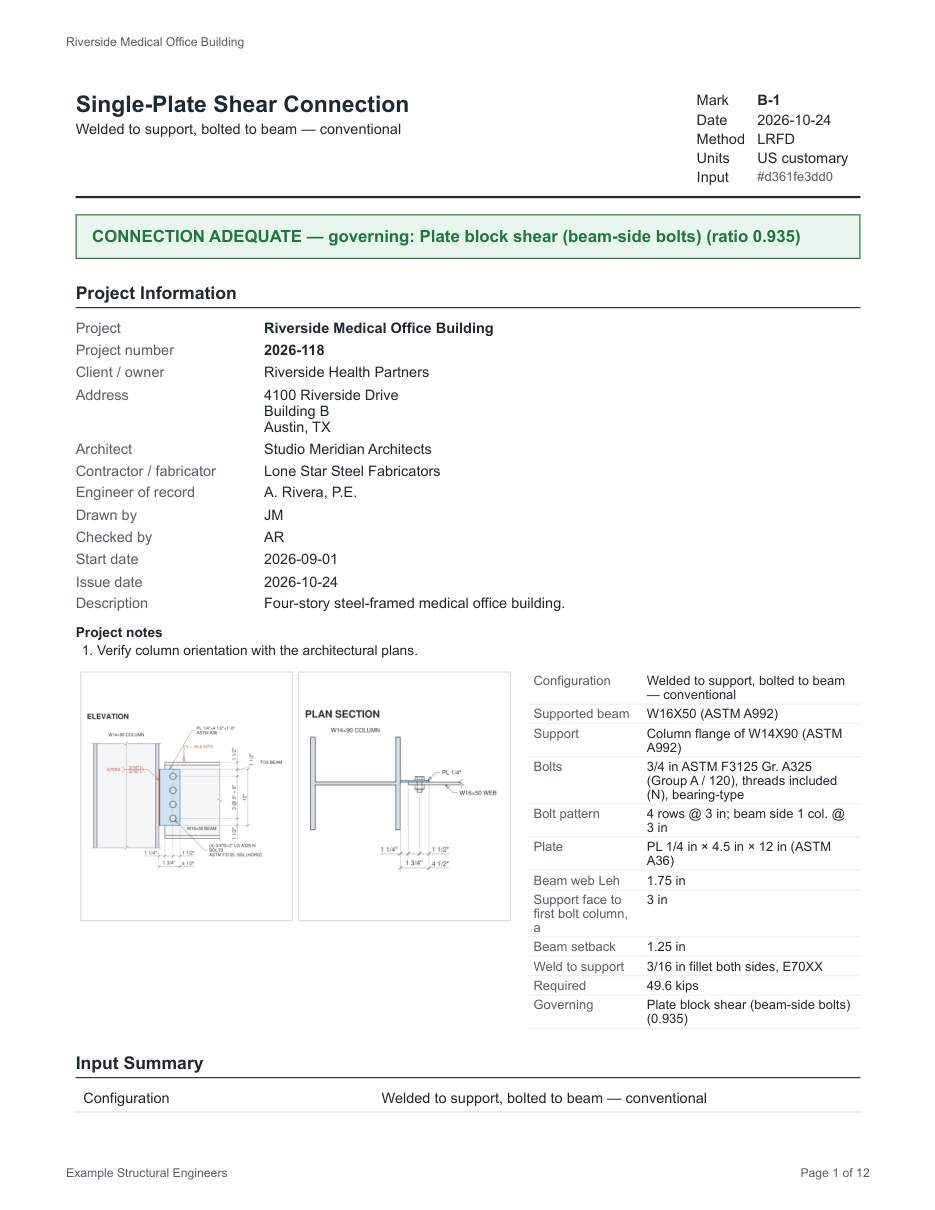
Page 1 of a sample report. The image was printed from the report's HTML by Chromium; the server renders the PDF with WeasyPrint, which may differ slightly in fonts and line breaks.
The page header and footer print the project, the mark, the firm, the date and "Page x of y". Every page footer carries the input hash.
Project calculation package and sheet set #
From a project's menu in the project panel:
| Menu item | Produces |
|---|---|
| Calc package (PDF) | One report for every connection in the project. By default it has a cover page (firm, project, index of connections and seal) and a table of contents, followed by each connection's report and, at the end, the drawing sheets S-501, S-502 and so on. |
| All sheets (PDF) | Every connection's drawing sheet in one PDF, numbered S-501, S-502… with "1 OF n" sheet counts. |
The package uses the project's report and title block settings. Connections appear in the same natural order as the project panel: numbers inside marks sort by value, so B-2 comes before B-10. The drawing sheets S-501, S-502… follow the same order.
Report settings #
Report settings decide what the report contains and how it looks. Open them from Settings (the gear in the header) → Report, either for My defaults or for a project (see Settings).
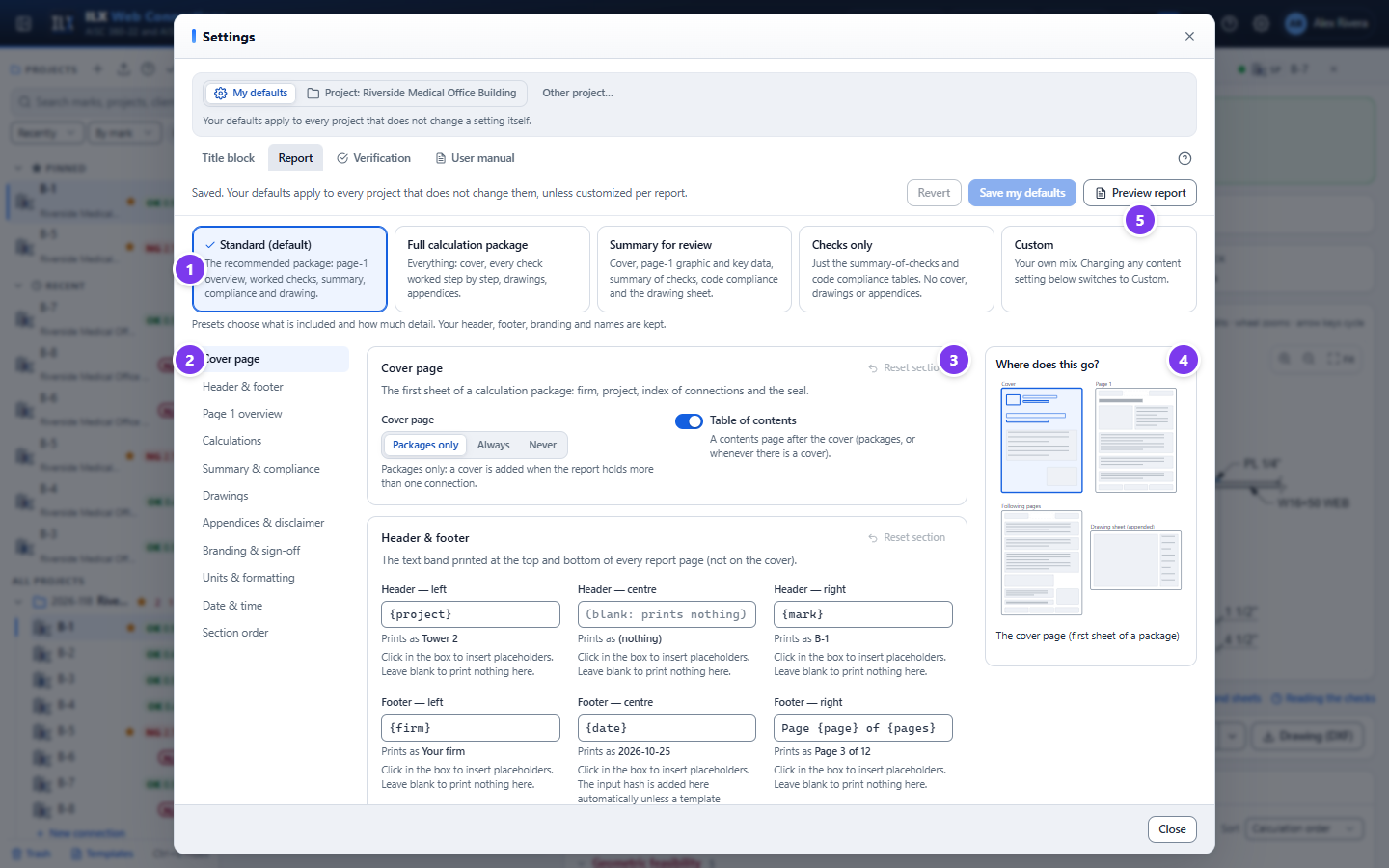
- Presets choose what is included and how much detail. Your header, footer, branding and names are kept when you switch.
- Standard (default): page-1 overview, worked checks, summary, compliance and the drawing.
- Full calculation package: everything, including the cover, every check worked step by step, the drawings and the appendices.
- Summary for review: the cover, the page-1 graphic and key data, the summary of checks, code compliance and the drawing sheet.
- Checks only: the summary-of-checks and code-compliance tables; no cover, drawings or appendices.
- Custom: selected automatically as soon as you change any content setting.
- Section list in document order. Select a group to jump to it. A dot marks a group with unsaved changes; a red number marks fields to fix.
- Settings groups. Each group has a short explanation and Reset section (to the factory defaults, or to your defaults in project scope).
- Where does this go? A thumbnail of the report pages highlights the region the setting you point at affects.
- Preview report renders a real PDF with the current, unsaved settings, using the open connection (or a sample connection), beside the settings. Select Update preview after further changes.
The settings groups #
| Group | Settings |
|---|---|
| Cover page | Cover page: Packages only (a cover when the report holds more than one connection), Always or Never. Table of contents. |
| Header & footer | Six text boxes: left, centre and right, top and bottom. Click a box to insert placeholders: {project}, {mark}, {date}, {page}, {pages}, {firm}, {engineer}, {hash}. The line under each box shows how it prints. A blank box prints nothing. |
| Page 1 overview | Project information, Connection graphic + key data, Input summary |
| Calculations | Loads & combinations, Detailed calculations, Detail level (Summary: tables only; Standard: hides the working of passing checks below Show working above ratio; Full: every step), Only show working for failing checks, Code references, Clause summaries inline, Fix hints |
| Summary & compliance | Summary of checks, Code compliance |
| Drawings | Connection drawings (inside the report), Append drawing sheet |
| Appendices & disclaimer | Code clauses appendix, Revision history, Disclaimer text |
| Branding & sign-off | Logo text (up to 12 characters; blank uses the title block's), Accent colour for headings and rules, Seal / signature block, Prepared by and Checked by (blank uses the project's people), Reviewer |
| Units & formatting | Units: As entered, US, SI or Dual, for example 12.0 kips (53.4 kN). Decimal places for forces and lengths. Text size (8 to 11 pt). |
| Date & time | Time zone for {date}, for example America/Chicago. Blank uses the server's time zone. |
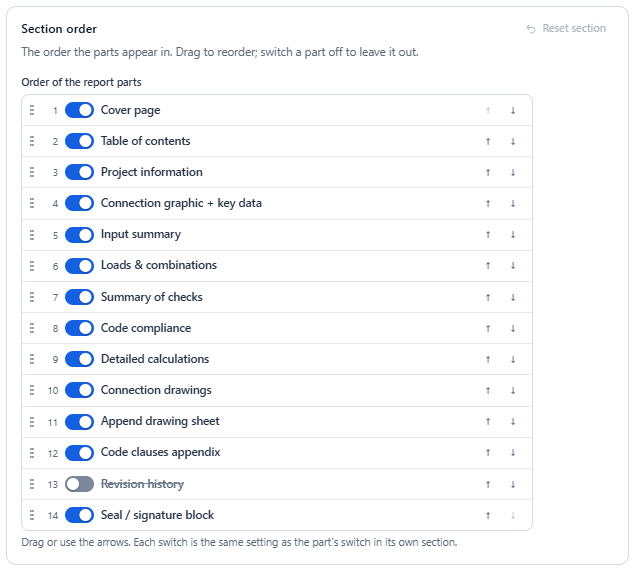
| Section order | The order of the report parts. Drag a part, or use the arrows. Each switch is the same setting as the part's switch in its own group. |
To save: select Save my defaults, or Save for this project in project scope. Revert discards your unsaved changes. If you close Settings with unsaved changes, ILX asks before discarding them.
Customize one report #
Customize this report… opens the same editor, starting from the saved settings that apply to this connection.
- Change what you need. The footer shows how many overrides apply to this PDF.
- Select Generate PDF.
Nothing is saved. The overrides apply to this PDF only.